How to forward your email
 Forwarding sounds trivial until you're staring at DNS records, worried about loops, or discovering your forwarded newsletters are hitting spam. Whether you're consolidating addresses, handing off a role, or mirroring mail to an assistant, here's how to forward cleanly in Gmail and Outlook.
Common reasons to forward
Inbox consolidation: You have an old address (personal, university, previous job) and want all mail arriving at one primary inbox without checking two places.
Role transitions: An employee leaves and their address needs to redirect to a manager or team inbox temporarily.
Aliases: billing@company.com forwards to the finance lead; press@company.com to marketing.
Visibility and backup: Critical mailboxes mirrored to a shared account for coverage.
Whichever the reason: document it. Forgotten forwards cause data leaks long after the person who set them up has moved on.
How to set up forwarding in Gmail
1. Open Gmail → Settings (gear icon) → See all settings → Forwarding and POP/IMAP.
2. Click Add a forwarding address and enter the destination.
3. Gmail sends a verification email to the destination — you must click the confirmation link from that inbox before forwarding activates.
4. Once confirmed, choose to keep a copy in Gmail or mark forwarded messages as read/delete them.
For selective forwarding — only certain senders or subjects — use Filters (Settings → Filters and Blocked Addresses) and pick "Forward it to" as the action. This is almost always safer than blanket forwarding of everything.
Note: Google Workspace accounts may have forwarding restricted by your admin for compliance reasons. Check with IT before assuming forwarding will work in an organizational context.
How to set up forwarding in Outlook
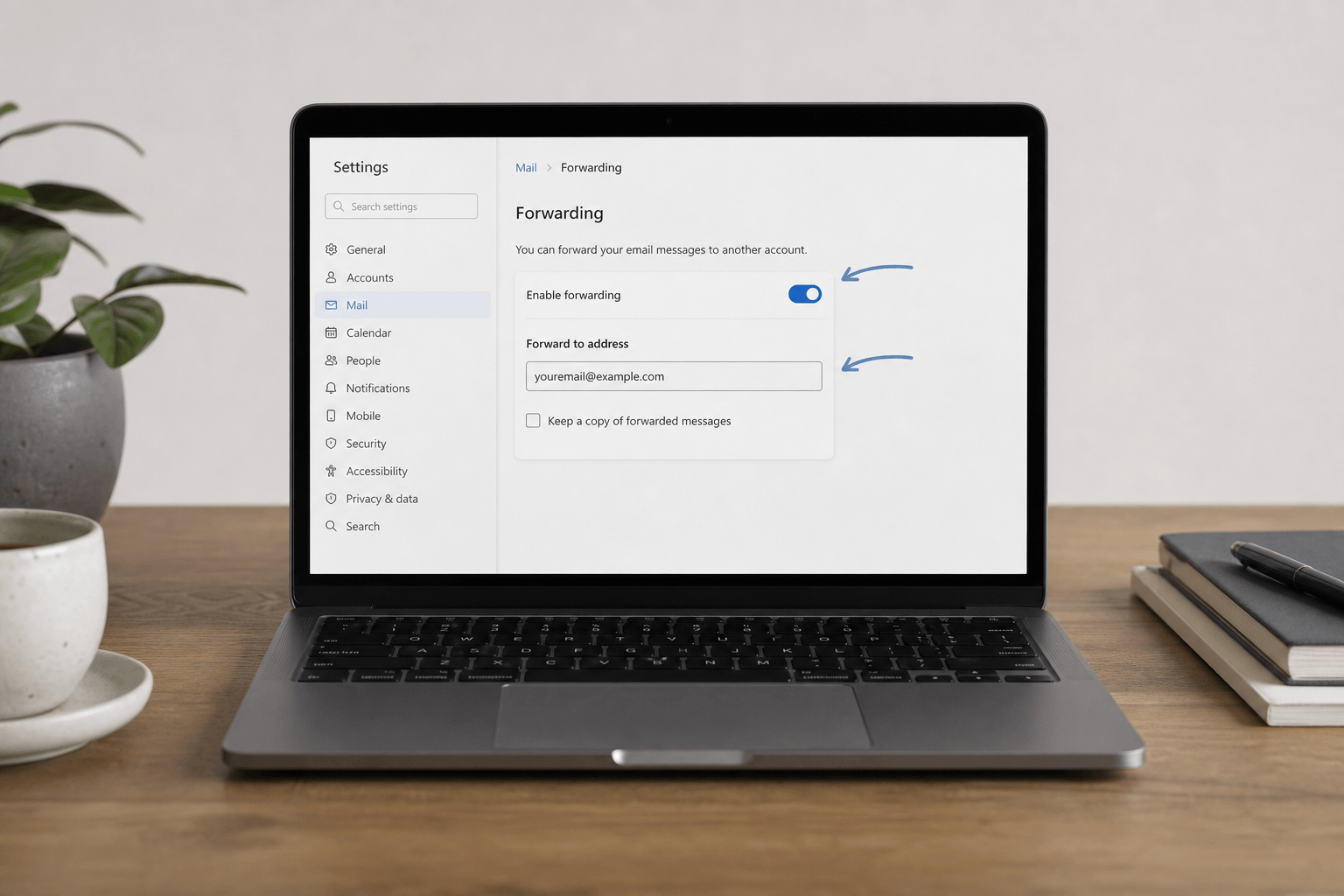
Outlook on the web: Settings → Mail → Forwarding. Toggle "Enable forwarding," enter the destination address, and optionally choose to keep a copy.
Desktop Outlook (Outlook 365 / Windows): File → Manage Rules & Alerts → New Rule → "Apply rule on messages I receive" → pick conditions → "Forward it to people or public group." This is more powerful (per-sender, per-domain rules) but easier to misconfigure — verify the rule is doing what you expect by sending a test.
Microsoft 365 organizational accounts often disable automatic external forwarding by default as a data-loss prevention measure. If you're on a company tenant, check with IT first — the toggle may be grayed out or silently blocked by transport rules.
Forward vs. redirect — the key difference
Most email clients only expose "forward," but understanding the distinction matters:
Forward re-sends the message from your address. The recipient sees it as coming from you — which changes how replies route and can affect spam scoring.
Redirect (available in some clients and server rules) preserves the original sender in the headers, so it appears to arrive directly from the original sender. Better for archiving and compliance, but less universally supported.
Deliverability: why forwarded mail sometimes hits spam
When Gmail or Outlook forwards a message, the forwarded copy may fail SPF or DKIM checks at the destination — because the email now originates from your server, not the original sender's. Recipients' spam filters see this misalignment and flag accordingly.
For high-volume or long-term forwarding scenarios, aliases are more reliable than forwards: they receive mail directly under a different address without re-routing through another server. Most Google Workspace and Microsoft 365 accounts support alias addresses natively — worth asking your admin to set up if permanent forwarding is the goal.
Avoid loops and audit regularly
Never create circular forwarding (A → B → A or A → B → C → A). Email loops can generate hundreds of bounced messages before servers catch on. Set up a test message flow before relying on any multi-hop configuration.
Set a calendar reminder to audit your forwards twice a year: list all active forwarding rules, verify they're still needed, and delete any that aren't. This is especially important when people leave roles.
When forwarding becomes unnecessary
If you're juggling Gmail, Outlook, and a legacy address because there's no other way to see them together — forwarding is duct tape. A client that natively connects multiple accounts removes the need entirely. Faraday unifies Gmail and Outlook in one intelligent inbox with automatic categorization, full operator search, and threads organized by what matters — so you get the consolidated view without the deliverability trade-offs of perpetual forwarding.
Forward deliberately. Audit twice yearly. And always prefer aliases over long-term forwards.