Email attachment size limits 2026
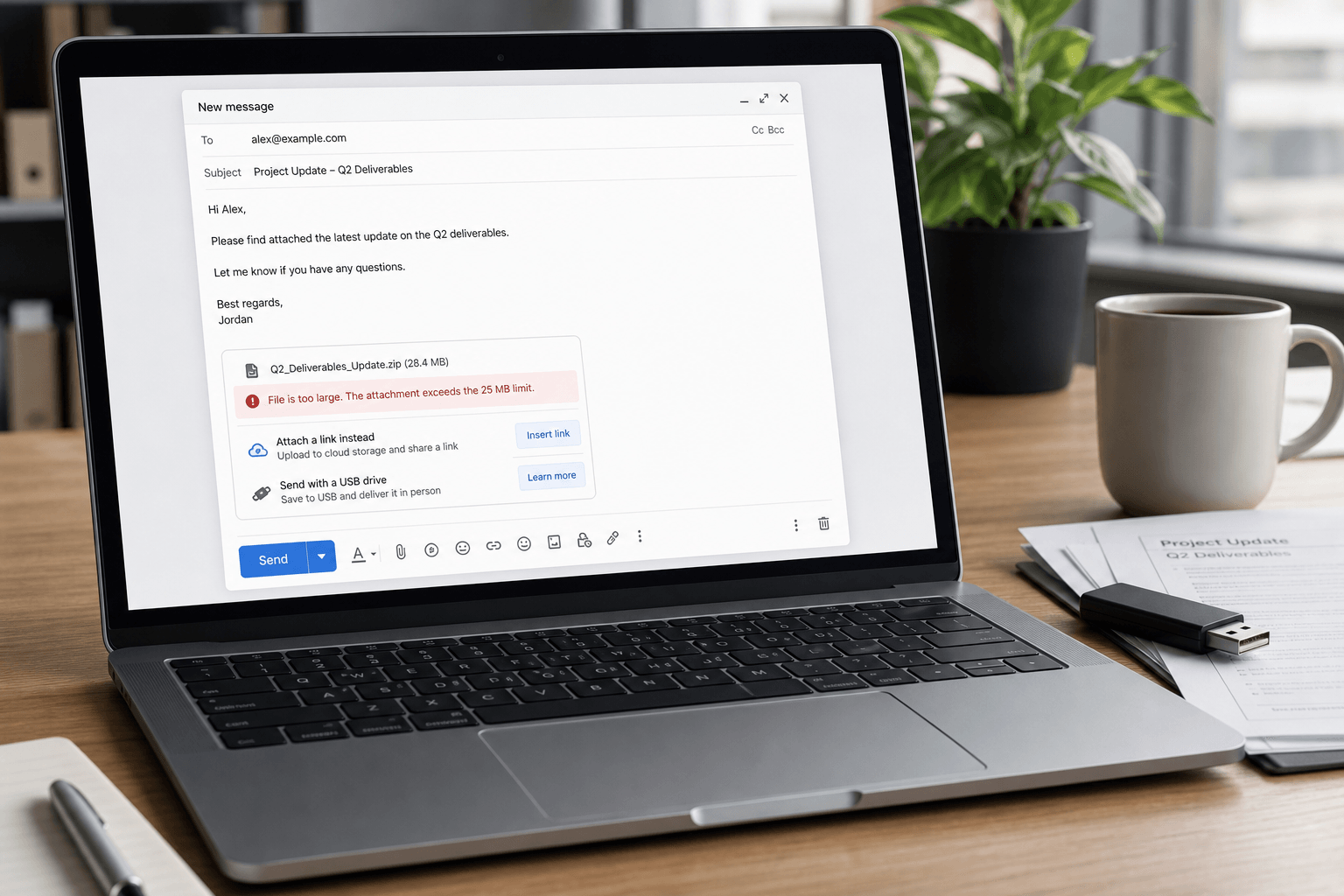 Every email provider has a different attachment size limit — and the number you see in their docs isn’t always the number that works in practice. Encoding overhead, recipient server policies, and security gateways all shave off headroom you thought you had.
Here are the exact limits for Gmail, Outlook, Yahoo, and Apple Mail in 2026 — plus what actually happens when you hit them, and the fastest workarounds.
Attachment size limits by provider
Gmail personal: 25 MB sending limit. Gmail may receive larger messages, but sending over 25 MB usually turns into a Google Drive link.
Google Workspace: commonly 25 MB, with administrator-controlled policies. Enterprise Plus customers can support larger 50 MB attachments when the feature is enabled.
Outlook.com / Hotmail: commonly 20 MB for normal attachments. OneDrive is the intended path for larger files.
Microsoft 365 / Exchange Online: can be configured up to much higher limits, often cited up to 150 MB, but many organizations cap messages much lower.
Yahoo Mail: commonly 25 MB. For larger files, use a cloud link.
Apple iCloud Mail: commonly 20 MB, with Mail Drop available for larger files as links.
Why a 25 MB attachment can still bounce
Email attachments are encoded before delivery, and that encoding can add roughly a third to the message size. A raw 24 MB file can become too large once headers, body content, signatures, inline images, and encoding overhead are included.
The recipient server matters too. Gmail may accept your file, but a company mail gateway, Exchange policy, or security appliance on the other side may reject it. The weakest limit in the path wins.
Safe rule of thumb
For reliable delivery, keep normal attachments under 10 MB. Between 10 MB and 25 MB, expect occasional failures. Over 25 MB, use Google Drive, OneDrive, Dropbox, iCloud Mail Drop, WeTransfer, Filemail, or another link-based delivery option.
This is not just about avoiding bounces. Links are easier to revoke, update, version, and track. They also keep inboxes lighter.
How to find large attachments in Gmail
Use these Gmail search operators:
has:attachment larger:10M finds messages with attachments over 10 MB.
filename:pdf larger:5M finds larger PDF files.
older_than:2y has:attachment finds old attachment-heavy messages.
from:client@example.com has:attachment narrows attachments from a specific sender.
For more examples, read our email search operators cheat sheet.
How to send large files without breaking email
Use Drive for Gmail recipients. Upload the file, check sharing permissions, and send a link instead of the binary attachment.
Use OneDrive for Outlook and Microsoft 365 recipients. This keeps permissions inside the Microsoft ecosystem and avoids Exchange limits.
Use Faraday to skip the limit entirely. When you attach a file larger than 25 MB in Faraday, it automatically converts it into a clean download link for the recipient — no manual upload to Drive or OneDrive, no file-sharing permissions to configure. You attach the file like normal, and the recipient gets a link to click and download. No bounced emails, no size errors.
Compress only when it actually helps. PDFs, spreadsheets, and text-heavy files compress well. Video, JPEGs, PNGs, and already-compressed exports often do not.
Use a shared project folder for ongoing work. If a thread will have multiple file versions, links beat attachments every time.
Bottom line
Email was not built for huge files. Gmail, Outlook, Yahoo, and Apple Mail all provide attachment limits because every message has to pass through multiple systems safely. If the file is small, attach it. If the file matters or is larger than 10 MB, send a link.
Faraday handles large attachments for you — attach any file size and it automatically generates a download link for the recipient. No worrying about provider limits, no manual cloud uploads, no bounced emails.
Attachment size limits FAQ
What is the Gmail attachment size limit in 2026?
25 MB for sending on a personal Gmail account. If you attach more, Gmail automatically uploads the file to Google Drive and sends a link instead. Gmail can receive messages up to 50 MB, but you can only send 25 MB directly.
What is the maximum attachment size in Outlook?
Outlook.com and Hotmail cap attachments at 20 MB for files attached from your device. Microsoft 365 / Exchange Online can be configured higher (often up to 150 MB), but most organizations set a lower limit. OneDrive is the intended path for larger files.
What is the Yahoo Mail attachment size limit?
Yahoo Mail allows attachments up to 25 MB per message. For anything larger, share a cloud link (Google Drive, Dropbox, or a service like WeTransfer).
What is the Google Workspace attachment size limit?
Google Workspace is commonly 25 MB per message, controlled by admin policy. Enterprise plans can enable larger attachments where configured.
How many files can you attach to one email?
There is no fixed file count — the limit is the combined size of all attachments plus the message body and encoding overhead. Gmail counts everything toward the 25 MB total, not per file.
Why does my attachment bounce even when it's under the limit?
Two reasons: encoding adds roughly a third to a file's size before sending, and the recipient's server may enforce a lower limit than yours. The smallest limit anywhere along the delivery path wins, so a 24 MB file can still fail.